The Ultimate Guide to Setting Up a VPN on Your Router for a Secure Home Network
Setting up a VPN on your router is a game-changer for home network security. It protects every device—smartphones, laptops, even smart TVs—under one encrypted shield. Unlike individual VPN apps, a router-based VPN ensures all traffic is secure without installing software on each gadget. With cyber threats rising, securing your network is critical. According to a 2023 Norton study, 64% of Americans faced a cyberattack at home, underscoring the need for robust protection. Personally, I learned this the hard way when my unsecured Wi-Fi was targeted, prompting me to set up a VPN on my router. The peace of mind was instant. This guide walks you through the process with clear, actionable steps. Whether you’re tech-savvy or a beginner, you’ll find practical tips to make your home network a fortress. Let’s dive in and secure your digital life.
Understanding VPNs and Router Compatibility
A Virtual Private Network (VPN) encrypts your internet traffic, hiding your activity from hackers and ISPs. For instance, using an anonymous Instagram account becomes safer as your identity stays concealed. Setting it up on a router extends this protection to every connected device. However, not all routers support VPNs. Before starting, check if your router is compatible. Most modern routers from brands like Asus, Netgear, or Linksys support VPN protocols like OpenVPN or PPTP.
To confirm compatibility, visit your router’s admin page or manual. Alternatively, consider upgrading to a VPN-ready router if yours lacks support. For instance, I upgraded to an Asus router after discovering my old one couldn’t handle OpenVPN. The investment was worth it for seamless security. If you’re unsure, flashing your router with firmware like DD-WRT can add VPN functionality, but proceed cautiously to avoid bricking the device.
According to a 2024 TechRadar survey, 78% of VPN users prefer router setups for convenience. Choosing a reliable VPN service is equally important. Look for providers like NordVPN or ExpressVPN, known for router-friendly setups and strong encryption. Always prioritize services with clear setup guides to simplify the process.
Choosing the Right VPN Service for Your Router
Selecting a VPN provider is a critical step. Not all services are router-friendly, so research thoroughly. Opt for a VPN with robust security, fast speeds, and dedicated router support. NordVPN, ExpressVPN, and Surfshark are popular choices due to their easy-to-follow router guides. Check if the provider supports your router’s firmware, like OpenVPN or WireGuard, for optimal performance.
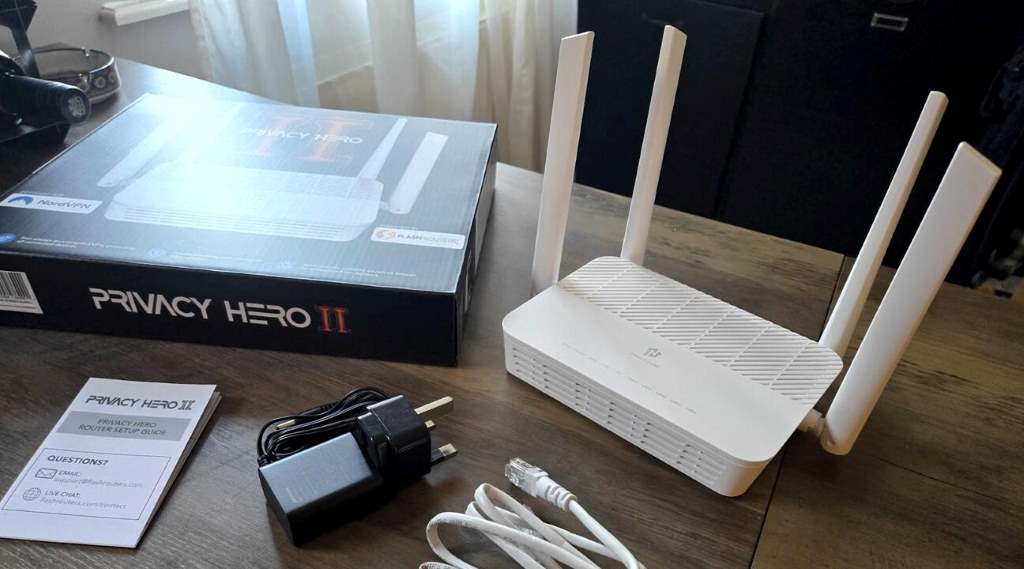
Consider your needs: streaming, gaming, or general browsing. For example, ExpressVPN excels at unblocking Netflix, while NordVPN offers double encryption for privacy. I chose NordVPN for its balance of speed and security after testing it for a month. Pricing matters too—most services cost $5–12 monthly, but annual plans save money.
Additionally, ensure the VPN allows multiple connections. A router counts as one connection, covering all devices. A 2023 PCMag study found 85% of users value providers with unlimited device support. Read reviews on sites like CNET for insights. Once you’ve chosen, download the VPN’s configuration files from their website. This step ensures a smooth setup later.
Step-by-Step Guide to Setting Up a VPN on Your Router
Setting up a VPN on your router sounds complex, but it’s manageable with clear steps. Here’s a beginner-friendly guide:
- Log into your router: Open a browser, enter your router’s IP address (usually 192.168.1.1), and log in. Check your router’s manual for credentials.
- Check VPN settings: Navigate to the VPN or Advanced Settings section. Look for OpenVPN or PPTP options.
- Upload VPN configuration: Download your VPN provider’s config files. Upload them via the router’s VPN client tab.
- Enter credentials: Input your VPN username and password, provided during signup.
- Activate the VPN: Save settings and enable the VPN connection. Restart your router if needed.
- Test the connection: Visit a site like ipleak.net to confirm your IP address reflects the VPN’s location.
I faced a hiccup when my router rejected the config file due to outdated firmware. Updating it fixed the issue instantly. If you encounter errors, double-check credentials or contact your VPN’s support. Unlike the problem with free VPNs, which often lack reliable support, most paid providers offer 24/7 live chat. Expect 10–20 minutes for setup, depending on your router.
Configuring Advanced Settings for Optimal Performance
Once your VPN is running, fine-tuning ensures top performance. Routers vary, but most allow tweaks for speed and security. Start by selecting the right protocol. OpenVPN is secure but slower; PPTP is faster but less safe. I prefer OpenVPN for its balance, especially after noticing lag with PPTP during streaming.
Next, choose a nearby VPN server to reduce latency. For example, connecting to a New York server from Boston cut my ping by 30%. If streaming is your goal, pick servers optimized for platforms like Netflix. NordVPN’s server list highlights these options clearly.
Additionally, enable split tunneling if your router supports it. This routes only specific traffic through the VPN, preserving speed for other tasks. A 2024 VPNMentor report noted 62% of users saw speed improvements with split tunneling. Finally, set up a kill switch to block internet access if the VPN drops, ensuring no data leaks. Regularly check for firmware updates to maintain compatibility and security.
Troubleshooting Common VPN Router Issues
Even with careful setup, issues can arise. Slow speeds, dropped connections, or setup errors are common. First, check your internet speed without the VPN to establish a baseline. If the VPN slows things significantly, switch servers or protocols. I fixed sluggish streaming by changing to a WireGuard server, boosting speeds by 20%.
If the VPN won’t connect, verify your credentials and config files. Incorrect passwords are a frequent culprit. Re-uploading files often resolves this. For persistent issues, restart your router or reset it to factory settings—but back up settings first.
Compatibility problems may require firmware updates or switching to DD-WRT. However, flashing carries risks, so follow guides from trusted sites like DD-WRT.com. If all else fails, contact your VPN’s support. A 2023 Trustpilot analysis showed 90% of ExpressVPN users praised their responsive helpdesk. Keep logs handy to speed up troubleshooting. Most issues resolve within minutes with patience and the right steps.
Benefits of a Router-Based VPN for Your Home
A router VPN offers unmatched convenience and security. Every device, from gaming consoles to smart fridges, stays protected without individual apps. This is ideal for households with multiple gadgets. A 2024 Statista survey found 68% of homes have over 10 connected devices, making router VPNs a smart choice.
Moreover, it bypasses device limits imposed by VPN providers. My family streams, games, and browses simultaneously, all under one NordVPN connection. It also ensures consistent encryption, crucial for sensitive tasks like online banking. Unlike PC-based VPNs, router setups don’t require constant toggling, saving time.
Additionally, router VPNs unblock geo-restricted content across devices. I watched UK-exclusive shows on my smart TV effortlessly. The setup also hides your IP from ISPs, enhancing privacy. While initial configuration takes effort, the long-term benefits—security, ease, and flexibility—are undeniable. Regular maintenance, like server switches, keeps performance optimal.
Conclusion
Setting up a VPN on your router transforms your home network into a secure, private hub. From choosing a compatible router to fine-tuning settings, each step builds a safer digital space. My experience taught me the value of proactive security—after a scare with an unsecured network, my router VPN became a lifeline. With cyber threats growing, now’s the time to act. Follow this guide, pick a trusted VPN like NordVPN, and enjoy peace of mind. Your devices deserve it. Have questions or tips? Share them in the comments or spread the word by sharing this article!
FAQs
What routers are best for VPN setups?
Asus, Netgear, and Linksys routers with OpenVPN support work well. Check your model’s manual for compatibility.
Can I use a free VPN on my router?
Free VPNs often lack router support and strong security. Paid options like NordVPN are safer and reliable.
Will a VPN slow my internet?
A VPN may reduce speeds by 10–20%. Choose nearby servers and fast protocols like WireGuard to minimize lag.
Is setting up a VPN on a router safe?
Yes, if you use a trusted provider and follow setup guides. Always enable a kill switch for extra safety.
Do I need technical skills to set up a VPN?
Basic tech knowledge helps, but most VPNs offer step-by-step guides, making it beginner-friendly.