Samsung Good Lock Returns: How to install it to customize your Samsung, without root
Samsung Good Lock appeared in mid-2016 to try to rejuvenate the then already outdated TouchWiz, and it continued updating for a couple of months until falling into oblivion. Now it’s back, and you can also install it and try it now, maybe.
This new Good Lock has been released only in South Korea, but with enough skill you can make it work on a Samsung with Oreo. It is not an app but nine, and gives you new options for personalizing your mobile, as well as new features.
Nine better than one
If you’re looking forward to trying out Samsung Good Lock as soon as possible, get ready because you’re going to have some work ahead of you. Instead of being a single APK, as in the 2016 version, this new Good Lock is composed of nine different APKs that you must install. Luckily, someone has uploaded them all together in a ZIP.
You must transfer these nine APKs to your mobile and install them manually one by one. Use the method that is most comfortable for you. I sent them to me through Telegram, but you can send them with a cable, by e-mail or whatever you want.
This modular structure has the advantage that you can choose what you install and what not . For example, if your mobile is not a Galaxy S with Edge screen, you can do without the applications for that edge, which also would not work. These are the different APK included …
- Edge Touch: Allows you to configure the zones in which the edge is activated, to avoid accidental presses while holding the mobile.
- Routine: The routines go back to Good Lock. With them you can have actions executed when certain conditions are met.
- Routine Plugin: Necessary component for routines. If you do not install it, it will install it only when you open the routines app.
- Edge Lighting Effect: An enhanced version of Edge Lightning that adds effects.
- Good Lock: The main app, although when opened the window is shown in white.
- Task Changer: An updated version of the recent view.
- QuickStar: Utility to customize the colors of the quick settings and the icons in the status bar.
- Lock Star: The new lock screen, with more customization options.
- One Hand Operation +: An improved version of Samsung’s one-handed mode.
How to configure these apps
After installing the previous APKs, you may be a bit lost. And now that? Good Lock has only been officially launched in South Korea, so in the rest of the countries you have to do some crafts to open the applications. Only Good Lock 2018 appears in the drawer, and when you open it, a blank screen appears without much else.
Some of these utilities are disabled by default, so you must configure them first to see what’s new. And, to configure them, you must open your configuration utility. Although they do not come out in the app drawer, you can launch it with an activity launcher such as Quick Shortcut Maker or the Nova Launcher Activities widget.
To set the lock screen, you need to open the activity SettingsActivity of LockStar. To change the quick settings and the status bar, you need to open QSTunerActivity from QuickStar. To change the appearance of the new recent window, you need to open the SettingsActivity of Task Changer.
The routines, the new one-hand mode and the advanced edge configuration of the Edge Touch screen are also accessible as a button for quick Android settings. That is, you can add the new buttons and activate or deactivate the function easily. Or open the options window, by making a long tap on the button.
Keep Reading: The solution to never lose your mobile contacts: Save them all in your Google account
New lock screen
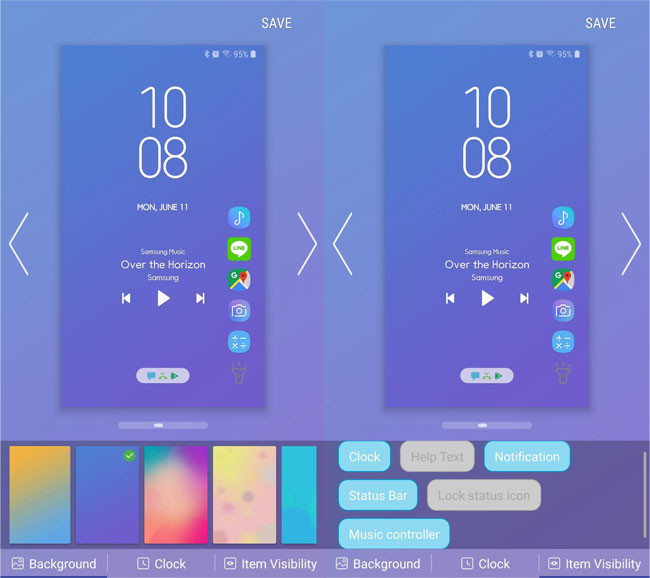 One of the novelties is the lock screen, which has some options more than those that come from the factory (although it depends on which Samsung you are installing it, which will differ more or less). In it you can choose between several pre-designed backgrounds, adjust the style of the design and what elements are displayed and which are not.
An interesting novelty is the possibility of choosing between several templates that place the clock and other elements of the blocking screen in different places, as well as the possibility of choosing up to six shortcuts to applications, ready to launch from the lock screen.
New view of recent
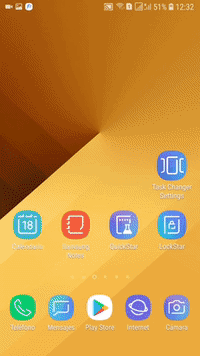 One of the most interesting changes of Good Lock is the new view of recent ones. It is activated by default, but if you access your options you can choose the transition between six different animations and you can choose a Mini mode.
The Mini Monkey converts miniature views of recent windows into small squares that occupy only half of the screen, but otherwise behaves the same as the recent full-size view.
Custom colors
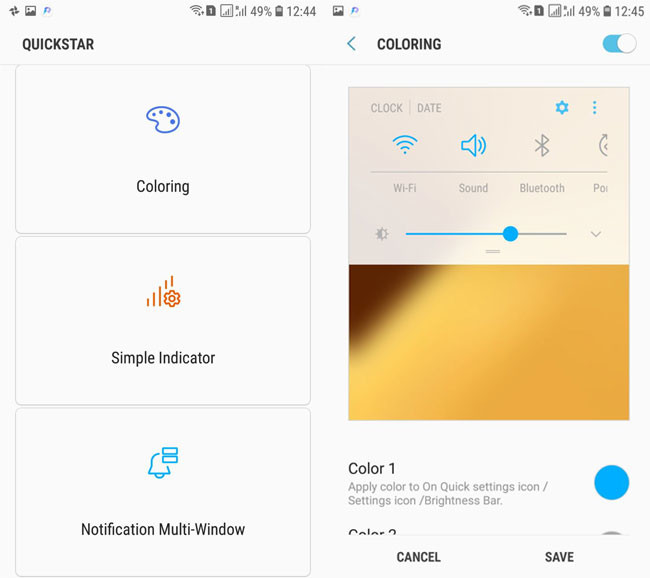 QuickStar is responsible for providing customization to quick settings, notifications and multi-window mode. In Coloring you can change the color settings of the Notification window and some interesting functions such as choosing whether to blur the background when displayed.
Simple Indicator is the place where you can choose which icons you want to show in the status bar and which ones do not, while Notification Multi-Window adds a new icon by sliding a notification to the side, to open that app in multi-window mode.
Routines
 The routines were in the first version of Samsung Good Lock and they have returned. These are condition-action configurations with which you can automate tasks on your mobile . For example, you can make Wi-Fi on when you get home, unlock the phone and activate the volume.
The list of actions and conditions is not excessively large, but all the basic ones are included so that you can surely take advantage of it, especially considering that you can combine several actions and conditions in the same routine.
One-handed mode
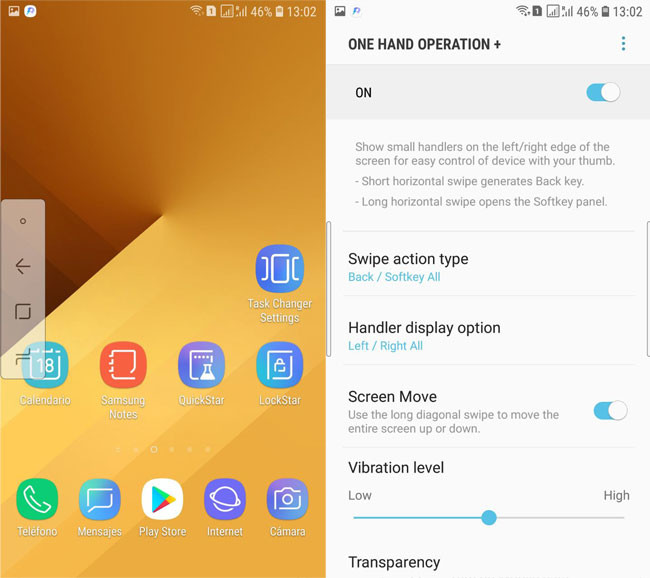 The advanced hand mode adds two modest indicators to both sides of the screen (you can customize its size and appearance) that you can use to display floating navigation buttons.
I’m not going to lie to you, it’s quite difficult to catch the trick, because you must slide your finger from one indicator to the other, at a certain speed. In the bar itself, a button is added to make it always visible, and it is possible to move the screen vertically to make sure you get where you wanted to go … with one hand.
Edge customization
Finally, Good Lock has two novelties aimed at those with phones with Edge screen. On the one hand there is Touch Edge, with which you can customize with total precision which zone will activate the functions of the edge and which will not.
In addition, Edge Lighting + adds new effects to the edge of the screen. They are the Fluid, Boomerang, Galaxy, Loop and Celebrate effect. Without a mobile with an Edge screen, this app closes when you open it.