How to Organize Digital Documents Efficiently: The Ultimate Guide to a Clutter-Free Digital Workspace
Picture this: You’re on a deadline, and you need to find a critical contract from six months ago. You dig through folders named “Miscellaneous,” “Old Stuff,” and “To Sort Later,” only to realize you’ve wasted 20 minutes—and still can’t locate the file. Sound familiar? A McKinsey study found that employees spend 1.8 hours daily searching for information. For digital documents, that time drain is often worse.
The problem isn’t just disorganization—it’s the mental toll of digital clutter. A Princeton University study revealed that clutter, whether physical or digital, increases cortisol levels and reduces focus. Yet, most people treat their digital documents like a junk drawer, tossing files in without a system. The result? Stress, wasted time, and missed opportunities.
This guide isn’t about creating a perfect filing system overnight. It’s about implementing a document management system that works for you—not against you. You’ll learn how to declutter your digital space, create a logical structure for your files, and maintain a system that saves you time and reduces stress. By the end, you’ll have a blueprint to transform your digital chaos into a well-oiled machine.
The Hidden Costs of Poor Digital Document Organization
The Productivity Drain: How Disorganization Wastes Your Time
A IDC report found that knowledge workers waste 20% of their time searching for information. For digital documents, the problem is compounded by vague file names, inconsistent folder structures, and duplicate files. The average professional spends 50 hours per year just looking for misplaced documents. That’s more than a week of lost productivity—time that could be spent on high-impact work.
Example: A lawyer billable at $300/hour who spends 10 minutes daily searching for files loses $1,500 annually in billable time.
The Stress Factor: How Digital Clutter Affects Your Mental Health
Digital disorganization doesn’t just slow you down—it stresses you out. A Carnegie Mellon University study found that cluttered digital environments increase anxiety and decrease productivity. The constant visual noise of a messy desktop or overflowing inbox creates cognitive overload, making it harder to focus on important tasks.
The Collaboration Nightmare: How Poor Organization Hurts Teams
Poor file organization doesn’t just affect you—it impacts your team. A Dropbox study revealed that 54% of employees struggle to find the documents they need, leading to duplicated work and miscommunication. When files are poorly named, stored in inconsistent locations, or not updated, collaboration suffers.
Example: A marketing team wasted 15 hours recreating a lost design file because it was saved in an obscure folder with no backup.
The Risk of Data Loss: Why Disorganization Leads to Disasters
Lost or corrupted files can be catastrophic. A Carbonite survey found that 29% of small businesses lose critical data due to poor file management. Without a clear system, files get overwritten, deleted, or lost in the shuffle. The cost? Recreating work, missing deadlines, or even losing irreplaceable records.
How to Organize Digital Documents Efficiently: A Step-by-Step System
Step 1: Declutter Your Digital Space
Before organizing, you need to clean house. Start by:
- Deleting duplicates: Use tools like Duplicate File Finder or Gemini 2 to identify and remove duplicate files.
- Archiving old files: Move files you no longer need to an external hard drive or cloud storage labeled Archive.
- Emptying trash and downloads: Clear out temporary files and old downloads you no longer need.
Pro tip: Set a rule to empty your downloads folder weekly. If you haven’t used a file in a week, you probably don’t need it.
Step 2: Choose the Right Document Management System
A document management system (DMS) is the backbone of efficient organization. Options include:
- Cloud-based DMS: Google Drive, Dropbox, or OneDrive for accessibility and collaboration.
- Local DMS: External hard drives or NAS devices for large files or sensitive data.
- Hybrid systems: A mix of cloud and local storage for flexibility.
Example: A freelance designer might use Google Drive for active project files and an external hard drive for archived work.
Step 3: Create a Logical Folder Structure
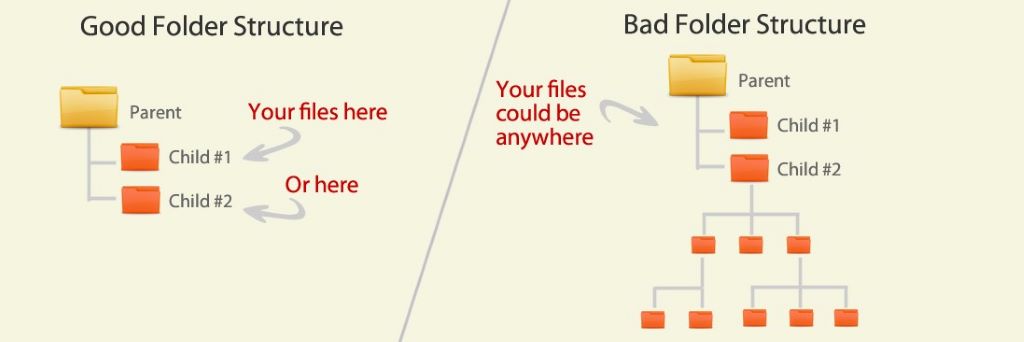
A clear folder structure makes files easy to find and maintain. Follow these principles:
- Keep it shallow: Avoid deep nesting (e.g., Documents > Work > Projects > 2023 > Client A). Stick to 2-3 levels max.
- Use clear, consistent names: Name folders and files descriptively (e.g., 2023_Q3_Budget_Report.pdf instead of Budget.doc).
- Group by category: Organize files by type (e.g., Invoices, Contracts, Presentations).
Example:
- Work
  -- Clients
    --- Client_A
      ---- Contracts
      ---- Invoices
      ---- Projects
    --- Client_B
  -- Admin
    --- Tax_Documents
    --- Receipts
Step 4: Implement a Naming Convention
A consistent naming convention makes files searchable and sortable. Use a format like:
[Date]_[Project]_[Description].ext
Example: 2023-10-15_ClientA_ProposalDraft_v2.docx
Pro tip: Use YYYY-MM-DD format for dates so files sort chronologically.
Step 5: Use Tags and Metadata for Advanced Organization
Tags and metadata make files easier to find without relying solely on folder structures. Most operating systems and cloud services support tagging:
- Mac: Use Finder tags (right-click > Tags).
- Windows: Use file properties or third-party tools like TagSpaces.
- Google Drive: Use labels or star important files.
Example: Tag files with keywords like #ClientA, #Urgent, or #Draft for quick filtering.
Step 6: Automate File Organization
Manual organization is time-consuming. Use tools to automate the process:
- Hazel (Mac): Automatically sorts files based on rules (e.g., move all PDFs to a PDFs folder).
- Dropbox Smart Sync: Keeps files organized and accessible without taking up local storage.
- IFTTT or Zapier: Automate workflows between apps (e.g., save email attachments to a specific folder).
Example: Set up a rule to move all screenshots to a Screenshots folder automatically.
Step 7: Backup Your Files Regularly
A backup strategy protects you from data loss. Follow the 3-2-1 rule:
- 3 copies of your data.
- 2 different media (e.g., cloud + external hard drive).
- 1 off-site backup (protected from local disasters).
Use tools like:
- Backblaze: Automatic, unlimited cloud backup.
- Time Machine: Built-in backup for Mac users.
- FileHistory: Windows’ built-in backup tool.
Pro tip: Automate backups to run daily or weekly. Test restores periodically to ensure backups work.
Step 8: Standardize Your Processes
Consistency is key to maintaining an organized system. Create:
- SOPs (Standard Operating Procedures): Step-by-step guides for naming, filing, and archiving documents.
- Templates: For common documents (e.g., invoices, reports, contracts).
- Checklists: To ensure nothing falls through the cracks during onboarding or project wrap-ups.
Pro tip: Use Notion or Confluence to create a centralized knowledge base for your team’s document management system.
Step 9: Train Your Team on Document Organization
A well-organized system is useless if your team doesn’t use it correctly. Provide training on:
- Folder structure and naming conventions.
- Tagging and metadata standards.
- Backup and recovery procedures.
Pro tip: Create a short video tutorial demonstrating how to use your document management system.
Step 10: Maintain Your System With Regular Audits
Digital document organization isn’t a one-time task. Schedule regular maintenance:
- Weekly: Empty trash and downloads, file new documents.
- Monthly: Review and archive old files, update naming conventions.
- Quarterly: Audit your folder structure and backup system.
File Organization: Pro Strategies for a Clutter-Free Digital Life
Tip 1: Use a “Working” and “Archive” System
Keep active files in a Working folder and move completed projects to an Archive folder. This keeps your workspace clean and ensures you can find current files quickly.
Example:
- Working
  -- Client_A_Project
  -- Client_B_Project
- Archive
  -- 2022_Projects
  -- 2023_Projects
Tip 2: Leverage Shortcuts and Symlinks
Instead of duplicating files, create shortcuts (Windows) or symbolic links (Mac/Linux) to access files from multiple locations without clutter.
Example: Create a shortcut to your Invoices folder on your desktop for quick access.
Tip 3: Use Metadata for Advanced Searching
Metadata (e.g., file type, creation date, size) can help you sort and filter files. Use tools like:
- Windows File Explorer: Sort by date, type, or size.
- Mac Finder: Use Kind, Date Modified, or custom tags.
- Adobe Bridge: For organizing creative files by metadata.
Tip 4: Create Templates for Repeated Tasks
Templates save time and ensure consistency. Create templates for:
- Invoices
- Reports
- Presentations
- Contracts
Store them in a Templates folder for easy access.
Tip 5: Implement a “Touch It Once” Rule
When you open a file, decide what to do with it immediately: file it, delete it, or act on it. Avoid leaving files in limbo (e.g., on your desktop or in downloads).
Tip 6: Use Version Control for Important Documents
Version control tracks changes and allows you to revert to previous versions. Tools include:
- Git: For code and collaborative projects.
- Google Docs: Version history for documents.
- Dropbox: File versioning and recovery.
Example: Use GitHub to manage versions of a website project or Google Docs to track edits to a report.
Tip 7: Organize Your Email Attachments
Emails are a common source of digital clutter. To manage attachments:
- Save attachments to the appropriate folder immediately.
- Use email rules to auto-save attachments (e.g., all PDFs to a PDFs folder).
- Archive or delete emails after saving attachments.
Pro tip: Use a tool like Mailstrom to bulk-delete old emails with attachments you’ve already saved.
Real-Life Examples: How Efficient Document Organization Transforms Workflows
Case Study 1: The Freelancer Who Reclaimed 10 Hours a Month
Sarah, a graphic designer, spent hours weekly searching for client files. She implemented a folder structure by client and project, used consistent naming conventions, and automated backups. Result: She saved 10 hours a month and reduced stress during deadlines.
Key Takeaway: A clear system eliminates guesswork and saves time.
Case Study 2: The Small Business That Avoided a Data Disaster
A marketing agency’s video files were scattered across drives and emails. They switched to a cloud-based document management system with shared folders and version control. Result: Faster client approvals and fewer misplaced files.
Key Takeaway: Centralized storage improves collaboration and reduces errors.
Case Study 3: The Law Firm That Improved Client Responsiveness
A law firm struggled with misplaced legal documents. They adopted a DMS with clear folder structures and metadata tagging. Result: They reduced document retrieval time by 70% and improved client responsiveness.
Key Takeaway: Efficient organization enhances professionalism and client satisfaction.
Common Mistakes That Sabotage Digital Document Organization
1. Overcomplicating Your Folder Structure
Too many nested folders make files harder to find. Stick to 2-3 levels of subfolders max.
2. Using Vague File Names
Names like Document1.doc or Final_Cut.mov are meaningless. Use descriptive names with dates and keywords.
3. Skipping Backups
Hard drives fail. Cloud services can have outages. Always have a backup (or three).
4. Ignoring Metadata and Tags
Without tags or metadata, files become hard to find. Always add relevant keywords and descriptions.
5. Hoarding Files “Just in Case”
Digital hoarding clutters your system. If you haven’t used a file in a year, archive or delete it.
6. Not Using Cloud Storage
Local-only files are vulnerable to loss. Cloud storage adds accessibility and redundancy.
7. Forgetting to Maintain Your System
Digital document organization requires regular upkeep. Schedule time to declutter and organize.
Expert Insights: How to Maximize Your Document Management System
Insight 1: Use a Content Audit to Identify Gaps and Opportunities
Regularly review your document library to:
- Identify popular content for repurposing.
- Spot gaps in your organization system.
- Archive outdated or irrelevant documents.
Example: A quarterly audit might reveal that project templates perform best, prompting you to create more.
Insight 2: Implement a Version Control System
Version control prevents confusion and lost work. Use:
- File naming: Include version numbers (e.g., V1, V2).
- DAM tools: Track changes and approvals.
- Cloud collaboration: Tools like Frame.io for feedback.
Insight 3: Create a Centralized Hub for All Documents
A centralized library ensures everyone uses the same files. Use a DMS or cloud storage with shared access for teams.
Insight 4: Leverage AI for Smart Tagging and Search
AI tools like Clarifai or Google Cloud Vision can auto-tag documents based on content, making them easier to find.
Example: An AI tool might tag a document with #Contract, #ClientA, and #2023 based on its content.
Insight 5: Integrate Your DMS With Your Workflow
Connect your document management system to other tools like:
- Editing software: Adobe Premiere or Final Cut Pro.
- Project management: Trello or Asana.
- Marketing tools: HubSpot or Mailchimp.
Insight 6: Monitor Usage and Performance
Track which documents are used most often and perform best. Use analytics to refine your organization system.
Insight 7: Keep Your Library Lean and Relevant
Regularly archive or delete old, unused files. A lean library is easier to navigate and maintain.
Related Topics:
FAQs: Your Top Questions About Organizing Digital Documents Efficiently
1. What’s the best way to start organizing my digital documents?
Begin with a folder structure that matches your workflow. Use clear, consistent names and tags for all files.
2. How do I choose between cloud storage and local storage?
Use cloud storage for accessibility and collaboration. Use local storage (external drives or NAS) for large files or sensitive data.
3. What tools can help me manage my documents?
- DMS systems: Bynder, Canto.
- Cloud storage: Google Drive, Dropbox.
- Local storage: External hard drives, NAS devices.
4. How can I make my files easier to find?
Use descriptive file names, tags, and metadata. Implement a consistent folder structure and train your team on how to use it.
5. What’s the best way to backup my documents?
Follow the 3-2-1 rule: 3 copies, 2 media types, 1 off-site backup. Use automated tools like Backblaze or Time Machine.
6. How can I repurpose old documents?
Turn one document into multiple assets:
- Clips: For social media or presentations.
- Templates: For future projects.
- Blog posts: Summarize key points.
7. How do I get my team to use the document management system correctly?
Provide training and clear guidelines. Use a content management system with intuitive features and shared access.
Conclusion: Turn Your Digital Documents Into a Well-Oiled Machine
Organizing digital documents efficiently isn’t about creating a perfect system overnight. It’s about implementing a document management system that works for you, saves time, and reduces stress. By decluttering your digital space, creating a logical structure, and maintaining a system that scales with your needs, you’ll transform your documents from a source of frustration into a strategic asset.
Remember: The best systems are those that evolve with you. Start small—pick one tip from this guide and implement it today. Over time, these habits will turn your digital chaos into a well-organized, efficient workspace.
Your next step? Spend 15 minutes decluttering your downloads folder. Delete what you don’t need, and file the rest in logical locations. The more you practice, the easier it gets.
Ready to Transform Your Digital Workspace?
Pick one area of your digital life that feels overwhelming—your desktop, downloads folder, or email attachments—and apply one strategy from this guide. Whether it’s setting up a DMS, creating a folder structure, or automating backups, every step counts.
Your clutter-free digital future starts now.