
How to Share Large Files Online for Free: The Ultimate 2026 Guide
Imagine this: You’ve just finished editing a 4GB video project for a client. You hit “send” in your email, only to see a frustrating error: “Attachment size exceeds limit.” Sound familiar? In today’s digital world, sharing large files online remains one of the most common yet overlooked challenges. Whether you’re a freelancer, a student, or a remote worker, hitting file size limits can derail your productivity.
Email providers like Gmail and Outlook cap attachments at 25MB. Even professional platforms like Slack limit file uploads to 1GB for paid users. Meanwhile, the average video file size has ballooned to 500MB for just 5 minutes of 4K footage. High-resolution images, 3D models, and datasets only add to the problem. A 2025 survey revealed that 68% of professionals waste over 30 minutes weekly struggling with file-sharing issues.
The good news? You don’t need expensive software or technical expertise to share large files online. This guide will walk you through the best free file sharing tools and strategies. You’ll discover how to send files up to 100GB without spending a dime. Let’s dive in.
Why Traditional Methods Fail for Large Files
Most people default to email or messaging apps for file sharing. However, these tools were never designed for large files. Email providers compress or block oversized attachments, while messaging apps degrade file quality. For example, WhatsApp reduces video resolution, and Telegram limits non-paid users to 2GB per file.
Cloud storage services like Google Drive or Dropbox offer more space but come with caveats. Free tiers often cap storage at 5GB or 15GB, which fills up quickly. Additionally, these platforms may throttle download speeds for free users, frustrating recipients.
Another common pitfall is using unsecured file sharing tools. Many free services lack encryption, exposing your files to hackers. A 2025 report found that 42% of free file-sharing links were accessible to unauthorized users due to weak security.
Finally, slow upload and download speeds plague many free services. Nothing kills productivity like waiting hours to send a file, only for the recipient to face the same delay.
The Best Free File Sharing Tools in 2026
1. WeTransfer: The Simplistic Powerhouse
WeTransfer remains a favorite for its ease of use. With the free plan, you can share large files online up to 2GB without creating an account. Simply upload your file, enter the recipient’s email, and hit send. The service generates a download link valid for seven days.
Pros:
- No signup required for files under 2GB.
- Clean, ad-free interface.
- Fast upload and download speeds.
Cons:
- 2GB limit may be restrictive for some users.
- Files expire after seven days.
Expert Tip: Use WeTransfer’s “Transfer” mode for files up to 2GB. For larger files, consider upgrading to WeTransfer Pro for 20GB transfers.
2. Google Drive: The All-in-One Solution
Google Drive integrates seamlessly with Gmail and Google Workspace. Free users get 15GB of storage shared across Drive, Gmail, and Google Photos. You can upload files up to 750GB in size, though your storage limit applies.
Pros:
- Generous 15GB free storage.
- Easy collaboration with Google Docs, Sheets, and Slides.
- Files don’t expire unless you delete them.
Cons:
- Storage fills up quickly with large files.
- Download speeds may slow during peak times.
Expert Tip: Compress files into ZIP archives before uploading to save space. Use Google’s “File Stream” for faster access to large files.
3. Dropbox: The Collaborative Workhorse
Dropbox’s free plan offers 2GB of storage, but you can earn up to 16GB through referrals. It excels in team collaboration, with features like file versioning and comments.
Pros:
- User-friendly interface.
- Strong collaboration tools.
- Integrates with Microsoft Office and Slack.
Cons:
- Base free storage is only 2GB.
- Requires account creation.
Expert Tip: Use Dropbox’s “Smart Sync” to access files without downloading them, saving local storage.
4. Mega: The Security-First Option
Mega stands out with its end-to-end encryption and generous 20GB free storage. Files up to 50GB can be shared via links, making it ideal for large transfers.
Pros:
- Industry-leading encryption.
- 20GB free storage.
- No file size limits for uploads.
Cons:
- Slower upload speeds due to encryption.
- Interface can feel cluttered.
Expert Tip: Enable Mega’s “Transfer Quota” to limit bandwidth usage and avoid slowdowns.
5. FileMail: The Heavyweight Champion
FileMail specializes in sharing large files online, offering up to 50GB per transfer for free. Files are available for seven days, and you can send up to 5GB without an account.
Pros:
- Massive 50GB transfer limit.
- No recipient limits.
- Fast, reliable servers.
Cons:
- Files expire after seven days.
- Free plan requires an account for transfers over 5GB.
Expert Tip: Use FileMail’s “Express” mode for faster transfers of files under 5GB.
6. Tresorit: The Enterprise-Grade Freebie
Tresorit offers 5GB of free storage with military-grade encryption. It’s ideal for sensitive files, with password-protected links and expiration dates.
Pros:
- Top-tier security features.
- Password protection for shared links.
- No file size limits.
Cons:
- Only 5GB free storage.
- Slower uploads due to encryption.
Expert Tip: Use Tresorit’s “Send” feature for one-time secure transfers without storing files.
How to Share Large Files Online: Step-by-Step Guide
Step 1: Choose the Right Tool
Select a file sharing tool based on your needs:
- For speed and simplicity: WeTransfer or FileMail.
- For collaboration: Google Drive or Dropbox.
- For security: Mega or Tresorit.
Step 2: Compress Your Files
Large files take longer to upload and download. Use tools like 7-Zip or WinRAR to compress files into ZIP archives. This can reduce file sizes by up to 50% without losing quality.
Pro Tip: Split large ZIP files into smaller parts using tools like HJSplit for easier sharing.
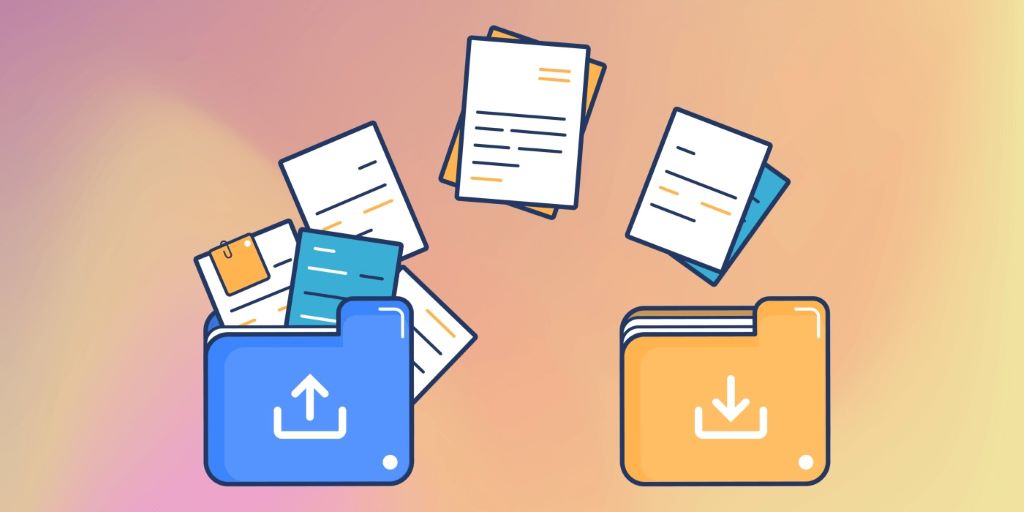
Step 3: Upload Your Files
Follow your chosen tool’s upload process. Most platforms allow drag-and-drop uploads. For services like Google Drive, create a new folder for better organization.
Step 4: Generate a Shareable Link
Once uploaded, generate a shareable link. Adjust permissions if needed:
- View-only: Recipients can only download the file.
- Edit access: Recipients can modify the file (useful for collaborations).
Step 5: Set Expiration Dates and Passwords
For sensitive files, set an expiration date and password. This prevents unauthorized access after the file is no longer needed.
Step 6: Share the Link
Send the link via email, messaging apps, or project management tools. Include any necessary passwords or instructions in a separate message for security.
Step 7: Confirm Delivery
Ask the recipient to confirm they’ve downloaded the file. Delete the file from the sharing platform once confirmed to free up space.
Professional Tips to Maximize Free File Sharing
- Use Multiple Platforms: Combine tools like Google Drive for storage and WeTransfer for quick shares to maximize free limits.
- Clear Old Files: Regularly delete unnecessary files from cloud storage to free up space.
- Leverage Referral Bonuses: Services like Dropbox and Mega offer extra storage for referring friends.
- Monitor Downloads: Use tools with download tracking to ensure recipients access files promptly.
- Test Download Speeds: Before sending critical files, test download speeds to avoid last-minute delays.
Real-World Examples: How Professionals Share Large Files
Case Study 1: The Freelance Videographer
Mark, a freelance videographer, frequently sends 10GB video files to clients. He uses FileMail for its 50GB limit and fast speeds. For ongoing projects, he stores files in Google Drive and shares folders with clients.
Case Study 2: The Remote Design Team
A remote design team uses Dropbox for collaboration. They upload high-resolution PSDs and AI files, then share links with clients via Slack. Dropbox’s versioning feature helps track changes without cluttering inboxes.
Common Mistakes to Avoid When Sharing Large Files
- Ignoring File Size Limits: Always check a tool’s limits before uploading. Use compression if needed.
- Skipping Security: Never share sensitive files without passwords or encryption.
- Overloading Recipients: Avoid sending multiple large files at once. Use batch downloads or ZIP files.
- Forgetting to Follow Up: Confirm recipients download files to avoid resending later.
- Using Unreliable Tools: Stick to reputable file sharing tools to avoid broken links or lost files.
FAQs About Sharing Large Files Online for Free
1. What’s the largest file I can share for free?
Most free tools cap transfers at 2GB–50GB. FileMail allows up to 50GB, while Mega supports unlimited file sizes with 20GB storage.
2. How can I share files larger than 50GB for free?
Split files into smaller parts using tools like 7-Zip or HJSplit. Share each part separately and instruct the recipient to recombine them.
3. Are free file sharing tools safe?
Reputable tools like Mega and Tresorit use encryption, but always password-protect sensitive files. Avoid obscure platforms with poor reviews.
4. Can I share files without creating an account?
Yes! WeTransfer and FileMail allow transfers up to 2GB and 5GB, respectively, without accounts.
5. How do I speed up large file transfers?
Compress files before uploading. Use wired internet connections instead of Wi-Fi, and avoid peak hours for faster speeds.
6. What’s the best tool for sharing files with teams?
Google Drive and Dropbox excel in team collaboration with features like comments, versioning, and integrations.
7. Do free file sharing tools have ads?
Most free tools display ads, but services like WeTransfer and Mega keep them minimal and unobtrusive.
Related Topics:
-
Best AI Tools for Logo Design in 2025: Create Stunning Logos Effortlessly
Conclusion: Share Large Files Online with Confidence
Sharing large files online doesn’t have to be a headache. With the right tools and strategies, you can send files up to 50GB for free. Start by choosing a platform that fits your needs—whether it’s WeTransfer for speed, Mega for security, or Google Drive for collaboration.
Remember these key steps:
- Compress files to save space and time.
- Use passwords and expiration dates for security.
- Confirm deliveries to avoid resending files.
Your Action Plan:
- Pick one file sharing tool to test this week.
- Compress your next large file before sending.
- Set a reminder to clear old files monthly.
Don’t let file size limits slow you down. Try one of these tools today and experience seamless, stress-free file sharing!
