How to Check Tesla Battery Health on the App: A Complete Guide for Owners
Tesla has revolutionized the electric vehicle (EV) industry with its cutting-edge technology and user-friendly features. One of the most critical aspects of owning a Tesla is maintaining its battery health, as it directly impacts performance, range, and longevity. Fortunately, Tesla makes it easy for owners to monitor their battery health through the Tesla app. In this guide, we’ll walk you through how to check Tesla battery health on app, why it’s important, and actionable tips to optimize your battery’s lifespan. Whether you’re a new Tesla owner or a seasoned EV enthusiast, this post will equip you with the knowledge to keep your Tesla running smoothly for years to come.
Why Monitoring Tesla Battery Health is Crucial
The Role of Battery Health in EV Performance
The battery is the heart of your Tesla. It powers everything from acceleration to climate control. According to a study by Geotab, EV batteries degrade at an average rate of 2.3% per year. This means that after five years, your Tesla’s battery could lose around 10-15% of its original capacity.
Monitoring battery health helps you:
- Maintain optimal range and performance.
- Identify potential issues early.
- Extend the lifespan of your battery.
How Tesla Batteries Work
Tesla uses lithium-ion batteries, known for their high energy density and longevity. These batteries are designed to last between 300,000 to 500,000 miles, as stated by Elon Musk. However, factors like charging habits, temperature, and usage patterns can affect their health.
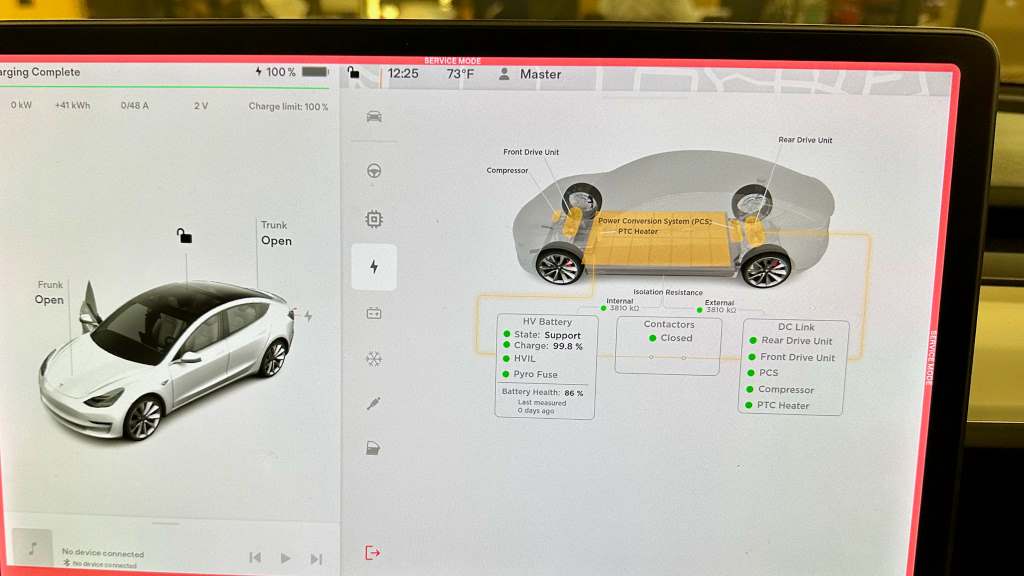
How to Check Tesla Battery Health on the App
Step 1: Download and Set Up the Tesla App
The Tesla app is available for both iOS and Android devices. Download it from the App Store or Google Play, then log in using your Tesla account credentials. Ensure your vehicle is connected to the app via Wi-Fi or cellular data.
Step 2: Navigate to the Battery Section
Once logged in, tap on your vehicle’s icon to access its details. Scroll down to the “Battery” section, where you’ll find key metrics like current charge level, estimated range, and charging history.
Step 3: Interpret Battery Health Metrics
The Tesla app provides several indicators of battery health:
- Estimated Range: Compare this to the original range when your car was new. A significant drop may indicate battery degradation.
- Charging Speed: Slower charging times could signal battery issues.
- Energy Consumption: Monitor how much energy your car uses over time.
For a more detailed analysis, consider using third-party apps like TeslaFi or Stats for Tesla, which offer advanced battery health reports. You can also learn the steps for Choosing a Caravan.
Tips to Optimize Tesla Battery Health
1. Avoid Frequent Supercharging
While Superchargers are convenient, frequent use can accelerate battery degradation. According to Tesla, occasional Supercharging is fine, but relying on it exclusively can reduce battery life.
2. Maintain a 20-80% Charge Range
Keeping your battery between 20% and 80% charge helps prolong its lifespan. Avoid letting it drop below 10% or charging to 100% unless necessary.
3. Park in Moderate Temperatures
Extreme heat or cold can harm your battery. Whenever possible, park in a garage or shaded area to maintain an optimal temperature.
4. Update Software Regularly
Tesla frequently releases software updates that improve battery management. Ensure your car’s software is always up to date.
5. Schedule Regular Maintenance
While Tesla vehicles require less maintenance than traditional cars, it’s still important to have your battery inspected periodically.
Common Signs of Battery Degradation
Reduced Range
If your Tesla’s range decreases significantly, it could indicate battery degradation. For example, a Model 3 with a 310-mile range might only achieve 270 miles after a few years.
Slower Charging Times
Battery health issues can cause slower charging speeds, even at Superchargers.
Increased Energy Consumption
Higher energy consumption without changes in driving habits may signal battery problems.
Conclusion
Monitoring your Tesla’s battery health is essential for maximizing its performance and lifespan. By using the Tesla app and following the tips outlined in this guide, you can ensure your EV remains in top condition for years to come.
Have questions or tips of your own? Leave a comment below or share this article with fellow Tesla enthusiasts. For more EV insights, explore our related content on Tesla maintenance and charging best practices.
FAQs
How often should I check my Tesla battery health?
Check your Tesla battery health every 3-6 months to monitor for any significant changes.
Can I improve my Tesla’s battery health after degradation?
While you can’t reverse degradation, following best practices like avoiding frequent Supercharging and maintaining a 20-80% charge range can slow further decline.
Does Tesla replace batteries under warranty?
Yes, Tesla offers an 8-year or 120,000-150,000-mile battery warranty, depending on the model.
What is the average lifespan of a Tesla battery?
Tesla batteries typically last between 300,000 to 500,000 miles, according to Elon Musk.
Are third-party apps safe for checking Tesla battery health?
Yes, apps like TeslaFi and Stats for Tesla are widely used and considered safe for monitoring battery health.