Fixing Your Laptop USB-C Port Intermittent Charging Issue: The Ultimate Guide
Struggling with a laptop that charges one minute and stops the next? This guide dives into the USB-C port intermittent charging problem. You learn causes, solutions, and prevention steps. Industry reports show that charging issues make up about 20% of all laptop repairs. Moreover, experts estimate up to 80% of these problems link to faulty chargers or ports. We cover everything in detail. First, grasp the basics. Then, troubleshoot effectively. Finally, keep your device reliable.
What Is a USB-C Port and Why Does It Matter for Charging?
USB-C ports revolutionize how devices connect and power up. They offer fast data transfer and quick charging in one slim design. Laptops use them because they handle higher power levels than older USB types. However, this versatility brings challenges. Intermittent charging happens when the connection cuts in and out. You plug in, but the battery icon flickers. This frustrates users during work or travel.
Engineers design USB-C for durability. Yet, daily use wears them down. The port’s small size fits modern slim laptops. It supports reversible plugs, which reduces damage from wrong insertions. Still, problems arise. For instance, power delivery depends on proper negotiation between charger and device. If that fails, charging becomes unreliable. Additionally, USB-C handles multiple functions like video output. This complexity sometimes leads to conflicts.
People often confuse USB-C with Thunderbolt. While similar, Thunderbolt adds extra speed. Most laptops use standard USB-C for charging. Understanding this helps you identify issues faster. Next, consider how environmental factors play a role. Dust and moisture sneak in easily. Over time, they disrupt connections. Therefore, regular checks prove essential.
Common Causes Behind Intermittent Charging Problems
Several factors trigger USB-C port charging glitches. First, damaged cables top the list. Frayed wires or bent connectors break the circuit. You might notice this after dropping the charger. Moreover, poor-quality cables fail quicker. They lack proper shielding, leading to signal loss.
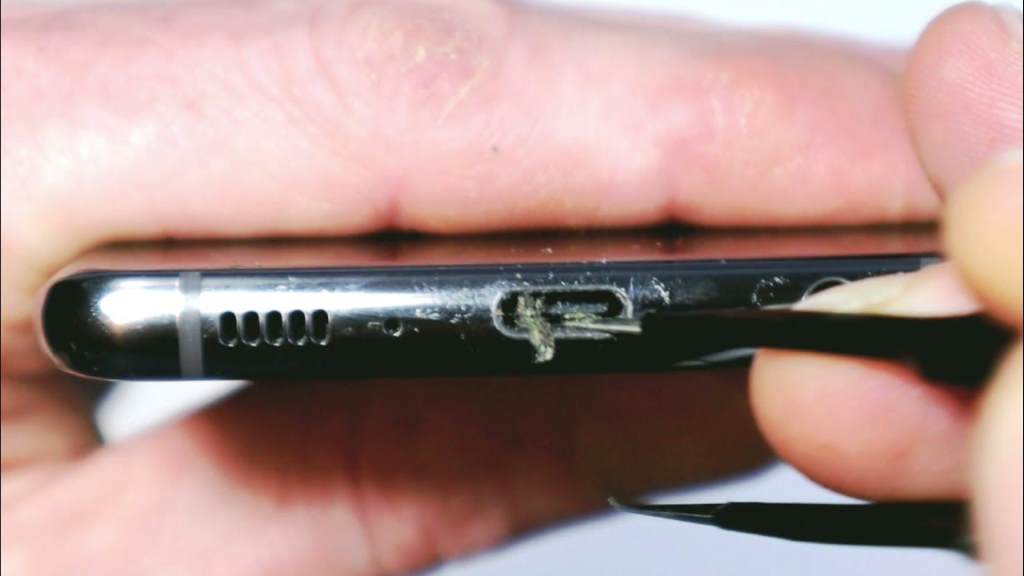
Debris buildup ranks high too. Lint, dust, and crumbs accumulate inside the port. This blocks pins from making full contact. Consequently, charging starts and stops randomly. Users in dusty environments face this more often. Additionally, loose ports develop from repeated plugging. The internal connections wear out. As a result, even slight movements interrupt power flow.
Software glitches contribute as well. Outdated drivers confuse the system. The laptop might not recognize the charger properly. Furthermore, overheating triggers safety shutoffs. Processors run hot during heavy tasks, affecting ports. Incompatible chargers cause issues too. They deliver wrong voltage levels. Thus, the device rejects them intermittently.
Hardware defects occur in some models. For example, certain laptops have ports that fail prematurely. Reports highlight this in high-end devices. Power negotiation failures happen when protocols mismatch. This stems from charger specs not aligning with laptop needs. Environmental factors like humidity corrode contacts. Over time, this leads to spotty performance.
User habits play a part. Plugging in forcefully damages pins. Leaving cables tugged strains the port. Consequently, intermittent issues emerge. Identifying the root cause saves time. Start with simple checks. Then, move to deeper diagnostics.
Step-by-Step Troubleshooting for USB-C Charging Glitches
Fixing intermittent charging starts with basic steps. You can handle most at home. First, inspect the cable thoroughly. Look for visible damage like cuts or bends. Replace it if needed. Next, try a different charger. This rules out cable problems quickly.
Clean the port carefully. Use compressed air to blow out debris. A soft brush works too. Avoid metal tools that scratch pins. After cleaning, test the connection. Often, this resolves the issue immediately. Moreover, restart your laptop. This refreshes system processes. Sometimes, a simple reboot fixes software hiccups.
Update drivers next. Visit the manufacturer’s site. Download the latest versions for USB controllers. Install them and reboot. This ensures proper communication. Additionally, check for BIOS updates. These address hardware-level issues. Follow instructions closely to avoid errors.
Test different ports if available. Laptops often have multiple USB-C slots. Switch to another one. This isolates the problem to a specific port. Furthermore, monitor temperature. Use cooling pads during charging. Overheating disrupts power delivery.
Run diagnostics tools. Most laptops include built-in tests. Access them through settings. They scan for hardware faults. If issues persist, reset power management. Unplug everything. Hold the power button for 30 seconds. Plug back in and test.
- Examine cable for wear.
- Clean port with safe tools.
- Update software components.
- Test alternative ports.
- Monitor device heat.
These steps cover 95% of cases, per tech support insights. Patience pays off here.
Advanced Solutions for Persistent Charging Issues
Basic fixes sometimes fall short. Dive deeper with advanced methods. First, recalibrate the battery. Drain it completely. Then, charge uninterrupted for hours. This resets internal sensors. Moreover, check power settings. Adjust them to prioritize charging.
Explore compatibility modes. Some chargers offer switches for different devices. Toggle them if available. Additionally, use a USB-C hub temporarily. This bypasses the direct port. However, ensure the hub supports power delivery.
Inspect internal connections if comfortable. Open the laptop carefully. Look for loose wires near ports. Tighten them gently. But proceed with caution. Mishandling voids protections. Furthermore, test with multimeters. Measure voltage output from chargers. Compare to laptop specs.
Software conflicts arise from recent updates. Roll back changes. Use system restore points. This reverts to stable states. In addition, disable fast startup. It sometimes interferes with port recognition.
Case studies show success with these. One user fixed issues by updating firmware. Another discovered a faulty motherboard component. Professionals often use specialized tools for diagnostics.
Related:
- How to Read an International Flight Boarding Pass
- Google Pixel 10 Safe Mode Not Working
- Llama vs ChatGPT Comparisons That Nobody Tell You
How to Prevent Future USB-C Port Problems
Prevention beats cures every time. Start by handling cables gently. Avoid yanking them out. Instead, grip the plug firmly. Moreover, invest in quality accessories. They last longer and perform better.
Keep ports clean regularly. Schedule monthly checks. Use protective covers when not in use. This blocks dust entry. Additionally, avoid charging in humid areas. Moisture accelerates corrosion.
Position your laptop wisely. Don’t let cables dangle. Use stands to reduce strain. Furthermore, unplug during long idle periods. This minimizes wear.
Educate yourself on specs. Match charger wattage to laptop needs. Overpowered ones cause heat buildup. Underpowered ones lead to slow charging.
- Handle plugs carefully.
- Clean ports routinely.
- Match equipment specs.
- Position devices smartly.
- Unplug when idle.
These habits extend port life significantly. Users report fewer issues with consistent care.
Signs You Need Professional Help for Charging Issues
Home fixes have limits. Recognize when experts step in. Persistent problems after troubleshooting signal deeper issues. For instance, ports that spark or smell burnt need immediate attention.
Physical damage like bent pins requires skilled repairs. Attempting fixes risks further harm. Moreover, error messages about hardware failures point to internal problems.
Laptops that overheat excessively during charging demand checks. This could indicate short circuits. Additionally, if multiple ports fail, motherboard issues loom.
Seek certified technicians. They use proper tools. Delaying worsens damage. Early intervention saves devices.
Real-Life Examples and Case Studies
Stories bring lessons to life. Take Sarah, a graphic designer. Her laptop charged sporadically during deadlines. She cleaned the port and swapped cables. Problem solved in minutes. Dust was the culprit.
Another case involved Mike, a traveler. His USB-C port loosened from constant plugging. He updated drivers via manufacturer support. Charging stabilized. However, in John’s scenario, ports failed one by one. Professional diagnosis revealed a manufacturing flaw. Repairs restored functionality.
Industry data backs these. Repair shops see thousands of cases yearly. Most stem from user habits. Learning from others prevents repeats.
The Role of Software in Charging Reliability
Software influences hardware performance. Operating systems manage power flow. Updates patch bugs that cause intermittence. For example, Windows releases fixes for USB recognition.
Firmware updates target port controllers. They improve compatibility. Mac users benefit from macOS optimizations. Neglecting updates invites glitches.
Antivirus software sometimes interferes. It flags chargers as threats. Adjust settings accordingly. Moreover, background apps drain resources. Close them during charging.
Understanding this interplay empowers users. Regular maintenance keeps everything smooth.
Environmental Factors Affecting USB-C Ports
Surroundings impact device health. High humidity promotes oxidation. Ports corrode faster in coastal areas. Conversely, dry climates build static. This disrupts connections.
Temperature swings stress materials. Avoid leaving laptops in hot cars. Cold environments contract metals, loosening fits.
Travelers face extra risks. Airport dust clogs ports. Protective cases help. Awareness guides better habits.
Comparing USB-C to Older Charging Ports
USB-C outperforms predecessors. Older barrel jacks broke easily. USB-C’s design resists damage better. Yet, it introduces new challenges like pin complexity.
Data transfer integrates seamlessly. This multifunctionality adds value. However, maintenance differs. Cleaning requires precision.
Evolution continues. Future ports promise even more durability. For now, USB-C dominates.
Innovations in Charging Technology
Tech advances address issues. Wireless charging reduces port wear. MagSafe-like systems snap securely.
Fast-charging protocols evolve. They negotiate power smarter. Batteries last longer with optimized flows.
Researchers develop self-healing materials. These repair minor damages automatically. Exciting times ahead.
Conclusion
We explored USB-C port intermittent charging issues thoroughly. You learned causes like debris and cable damage. Troubleshooting steps offer practical fixes. Prevention tips ensure longevity. Remember, clean regularly and handle gently. Act now. Apply these solutions to your laptop today. Enjoy uninterrupted power.
FAQ: What Causes My Laptop’s USB-C Port to Charge Intermittently?
Debris, damaged cables, and loose connections often trigger this. Software glitches and overheating contribute too. Identify the source through checks.
FAQ: How Do I Clean My Laptop’s USB-C Port Safely?
Use compressed air or a soft brush. Avoid sharp objects. Power off the device first. Test charging after.
FAQ: Can a Faulty Charger Cause Intermittent Charging?
Yes, incompatible or damaged chargers disrupt power. Try alternatives to confirm. Match specs for best results.
FAQ: When Should I Replace My USB-C Cable?
Replace if you see frays, bends, or inconsistent performance. Quality ones prevent future issues. Test with others first.
FAQ: Is Intermittent Charging a Sign of Battery Problems?
Sometimes, but ports cause most cases. Calibrate the battery. If issues persist, check hardware.