Cox Modem Orange Light Explained: Is Your Internet Down and How to Fix It?
A Cox modem orange light usually means your modem is having trouble getting a stable signal from Cox, so your internet may be down or cutting in and out until the light turns solid white or green again. In many cases this is caused by a temporary outage, loose or damaged coax cables, or a firmware/update or boot‑up process that has not finished yet.
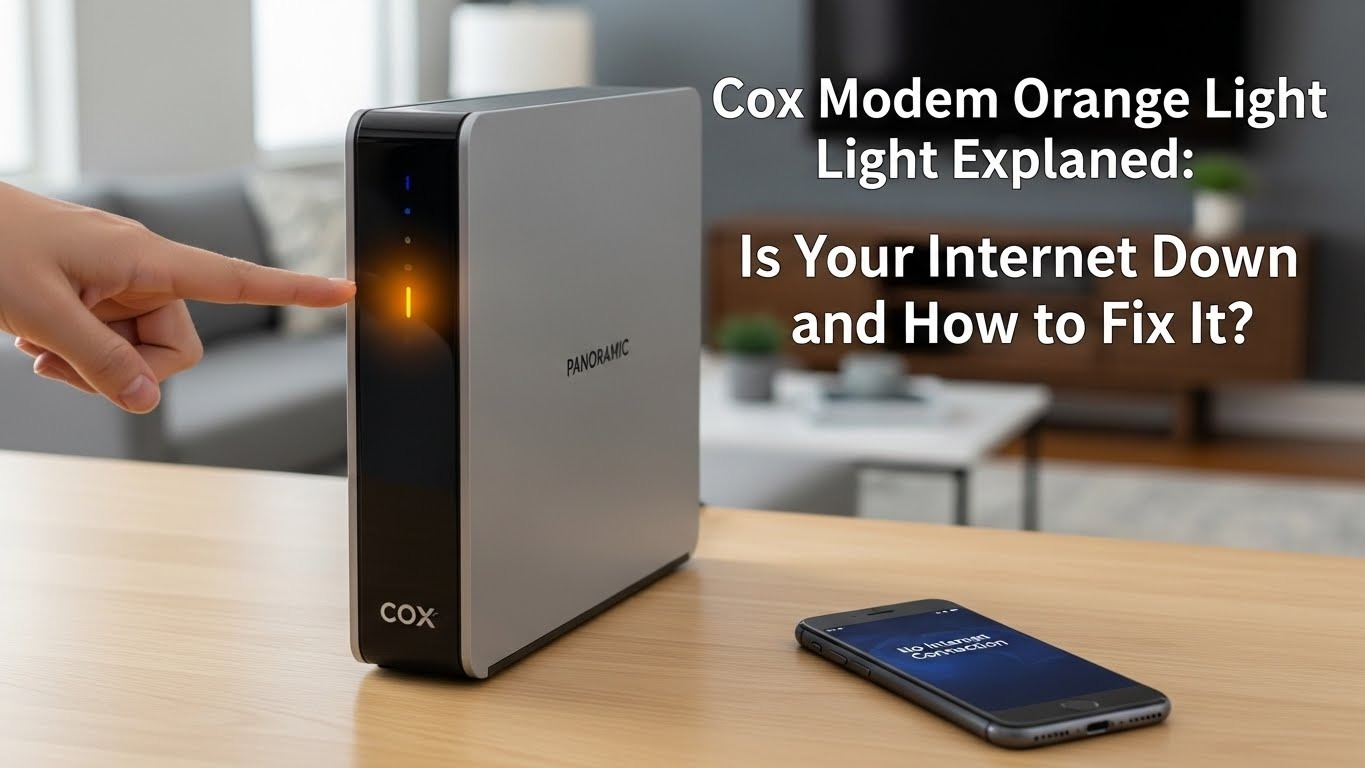
What the Cox modem orange light means
When the cox modem orange light starts blinking, it typically indicates the modem is trying to lock onto the downstream signal but is not successfully establishing a steady internet connection. This is why your Wi‑Fi may show as connected but websites will not load or will load very slowly.
On most Cox gateways, a solid white (or sometimes white/green) status light means the modem is fully online, while an orange or amber light—especially if it keeps blinking—points to a connectivity or registration problem with Cox’s network.
Orange vs other Cox status lights
Understanding cox modem status lights helps you quickly figure out what is wrong without guessing.
-
Blinking orange: Modem is struggling to get a usable downstream signal or complete registration with Cox’s network.
-
Solid orange: Often suggests a more serious fault such as failed connection or hardware/line issue, with no usable internet access.
-
Blinking green or white: Device is booting or starting up and attempting to connect, which may be normal for a few minutes after power‑on.
-
Solid white/green: Normal operation with a stable connection to the internet.
If you see a cox modem downstream light orange, that usually points directly to a downstream signal issue between the coax line and Cox’s network, not your Wi‑Fi device. That is why wired and wireless devices will all experience the same problem at once.
For a detailed breakdown and visual examples of these light states, users can also consult external guides such as this Cox modem orange light article: cox modem downstream light orange
Main reasons your Cox modem is orange
Several common issues tend to trigger a cox modem orange blinking status.
-
Service outage or maintenance in your area, where Cox’s upstream systems temporarily cannot provide a stable signal.
-
Loose, damaged, or poorly terminated coaxial cables between the wall outlet, splitters, and your modem.
-
Firmware update or registration process in progress; during this time the modem may blink orange until the update completes.
-
Overheating or overloading if the modem is in a closed cabinet or stacked with other hot electronics.
-
A random software glitch or outdated firmware that prevents the modem from fully syncing with Cox’s network.
-
Faulty coax outlet or house wiring, especially if the issue is isolated to one outlet while others work.
In rarer cases, a persistent orange light can signal a failing modem, especially if it remains even after Cox confirms there is no outage and your lines test fine.
Quick checks before deep troubleshooting
Before diving into more advanced fixes, a few simple checks can save time and rule out temporary glitches.
-
Wait 5–10 minutes after first noticing the cox modem orange blinking light, especially if you just rebooted or Cox recently pushed an update.
-
Confirm other devices in your home have the same issue; if only one phone or laptop is affected, the modem is less likely to be the problem.
-
Make sure the modem has plenty of airflow and is not too hot to the touch, which can cause intermittent orange light and random disconnects.
If the light stays orange and your internet remains unstable, move on to active troubleshooting.
Step‑by‑step fixes for a Cox modem orange light
Follow these steps in order, testing your connection after each one to see if the cox modem orange light clears.
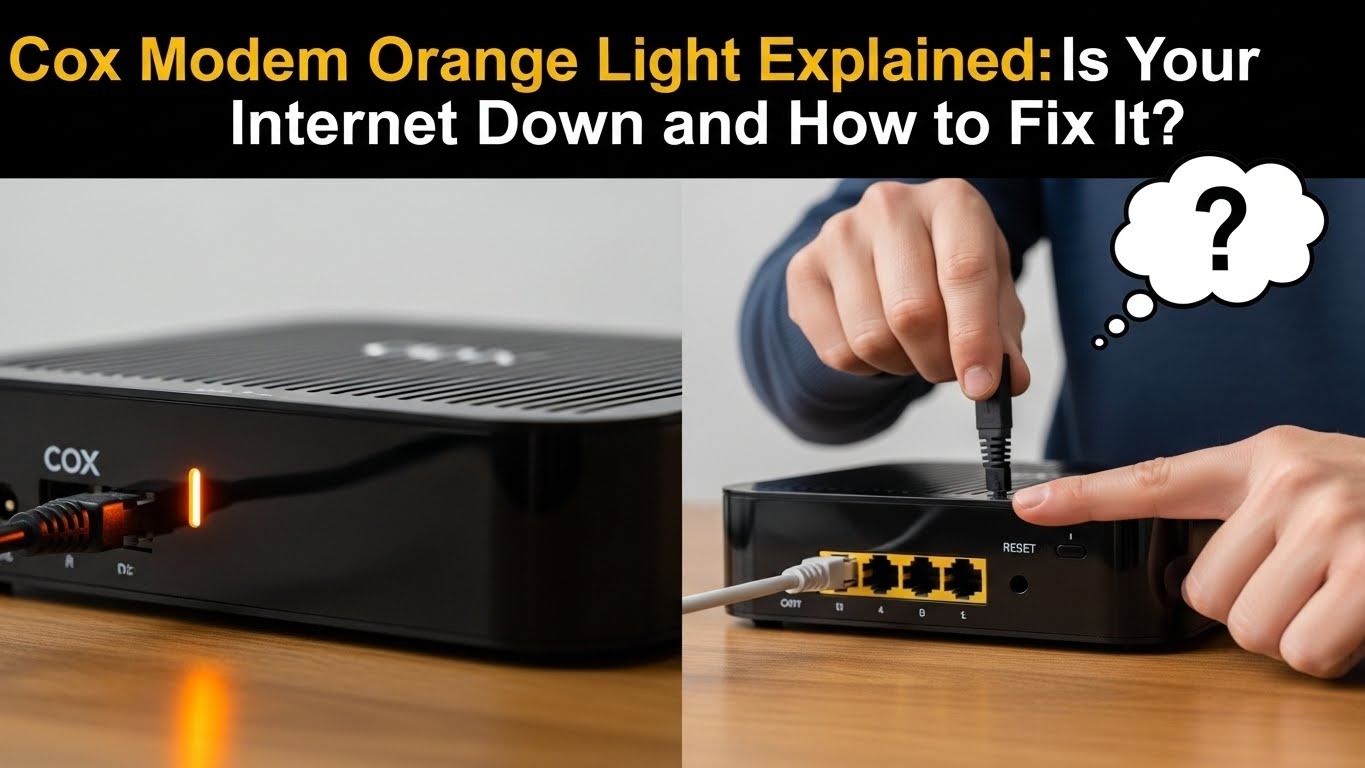
1. Check for a Cox outage
-
Use Cox’s outage map or account dashboard to see whether there is an active outage or maintenance near your address.
-
If an outage is reported, the light will often go back to white/green on its own once Cox resolves the network issue.
2. Power cycle the modem (and router)
A proper power cycle clears many temporary glitches that lock the modem in a cox modem orange blinking state.
-
Unplug the power cable from the modem and, if separate, from your router.
-
Wait at least 60–120 seconds to let all capacitors discharge and the device fully shut down.
-
Plug the modem back in first and wait until lights stabilize; then reconnect the router and let it boot.
If the light changes from blinking orange to solid white/green after this, the issue was likely a temporary software or registration glitch.
3. Inspect coax and Ethernet cables
Physical connection issues are one of the most frequent causes of a cox modem downstream light orange indicator.
-
Hand‑tighten all coaxial connections from the wall outlet to the modem and through any splitters, ensuring they are snug but not overtightened.
-
Inspect cables for kinks, cuts, or crushed sections and replace any damaged segments, especially old or low‑quality coax.
-
If you use a separate router, verify the Ethernet cable from modem to router clicks securely into place and does not show visible damage.
If possible, temporarily bypass splitters and connect the modem directly to the primary coax outlet to see if the light returns to normal.
4. Try a different coax outlet
A damaged or inactive wall jack can leave your cox modem status lights stuck on orange even if the rest of the line in the house is okay.
-
If you have multiple cable outlets, plug the modem into another outlet and reboot it.
-
If the modem comes online on a different outlet, the original jack or its wiring needs repair or replacement.
5. Check for overheating and placement issues
Continuous heavy use or poor ventilation can cause thermal issues that manifest as intermittent disconnects and an orange status light.
-
Place the modem upright, on a hard surface, with several inches of clearance on all sides.
-
Avoid stacking it on top of hot equipment like game consoles or inside closed cabinets where heat builds up.
After improving airflow, reboot the modem and watch whether the cox modem orange blinking problem returns when the device gets warm again.
6. Update firmware or perform a factory reset
If your modem has outdated firmware or corrupted configuration, it may never fully register, leaving downstream locked in an orange state.
-
Log into your modem or gateway’s admin page (usually printed on a sticker) and check for available firmware updates or diagnostic tools.
-
If updates are automatic, simply leaving the modem connected and powered on for a while may allow Cox to push the latest firmware.
-
As a last resort, use the reset button (often combined with WPS) to restore factory settings, holding it for the time specified in your model’s manual.
Be aware that a factory reset will erase custom Wi‑Fi names and passwords, so note these down before resetting.
7. Contact Cox support or schedule a technician
If none of the above steps clears the cox modem orange light, the issue may lie beyond your home or in failing hardware.
-
Contact Cox support and have them run remote diagnostics on your line and modem; they can often see signal levels and error counts.
-
Confirm that your modem’s MAC address and serial number are correctly registered to your account; incorrect provisioning can keep the modem stuck in registration.
-
If signal levels are poor or noise is high, a field technician may need to inspect the line, replace connectors, or swap out the modem.
When to consider replacing your Cox modem
Even if the connection occasionally works, an aging or faulty modem can show recurring cox modem orange blinking behavior.
-
Frequent reboots, random disconnects, or regular returns to orange status even after clean cables and good signal often point to failing hardware.
-
Newer DOCSIS‑compatible models typically deliver better stability, faster speeds, and longer support, reducing the chance of chronic orange‑light issues.
Before buying your own modem or requesting a replacement, check Cox’s approved device list to ensure compatibility with your speed tier and service type.
FAQs about Cox modem orange light
1. Does a Cox modem orange light always mean the internet is completely down?
Not always. A cox modem orange light usually means your connection is unstable or the modem is still trying to sync, so you may experience slow speeds, timeouts, or intermittent access rather than a total outage.
2. How long should I wait before rebooting a modem with an orange light?
If you recently restarted or there may be an update in progress, wait about 5–10 minutes to see if the cox modem orange blinking status clears on its own. If it stays orange after that, begin troubleshooting with a power cycle.
3. Why is only the downstream light orange?
A cox modem downstream light orange often indicates the modem can see Cox’s network but cannot secure a strong, clean downstream signal, which is required for reliable downloads and general browsing. This is typically related to line noise, poor signal strength, or coax issues.
4. Can Wi‑Fi problems alone cause the orange light?
Pure Wi‑Fi issues (like interference or a bad router) normally do not change the core cox modem status lights, which reflect the state of the modem’s connection to Cox. Wi‑Fi problems usually occur even when the main status light is white/green.
5. Is it safe to ignore a brief orange light?
A short burst of cox modem orange blinking while the modem boots or updates is usually normal, as long as it quickly returns to a solid white or green state. If it stays orange for more than several minutes and you notice connection problems, it needs attention.
Call to action
If your cox modem orange light is on right now, do not wait for the problem to get worse—work through the quick checks and fixes above to restore a stable connection today. For a more detailed visual walk‑through and additional tips on fixing cox modem orange blinking,
Related Topics: From Reach to Revenue: 5 B2B Social Media Marketing Strategies That Work
Related Topics: Fixing Your Laptop USB-C Port Intermittent Charging Issue: The Ultimate Guide